咸鱼

咸鱼是以盐腌渍后,晒干的鱼

0%

父组件传 值 给子组件

  1. 父组件调用子组件的时候 绑定动态属性
    1
    <v-header :title="title"></v-header>
  2. 在子组件里面通过 props接收父组件传过来的数据
    1
    2
    3
    4
    5
    props:['title']
    或者
    props:{
    'title':String
    }
  3. 直接在子组件里面使用

父组件传 函数 给子组件

  1. 父组件调用子组件的时候 绑定函数
    1
    <v-header :say-hello="parentSayHello"></v-header>
    父组件的函数
    1
    2
    3
    4
    5
    methods:{
    parentSayHello(name){
    console.log(name + "say hello");
    }
    }
  2. 在子组件里面通过 props接收父组件传过来的数据
    1
    2
    3
    4
    5
    6
    props:{
    sayHello:{
    type: Function,
    require: false,
    },
    }
  3. 直接在子组件里面使用
    1
    <button @click="sayHello('jack')"/>
父组件主动调用子组件属性、方法

阅读全文 »

在一个 Vue-Cli 的项目中发现使用 cnpm install安装依赖库有些小问题,导致在WebStrom上无法识别库的自定义标签,也无法跳转到自定义标签的源码。

举例

1
cnpm install element-ui -S

使用标签 <el-button/> 时,webstrom提示 Unknown html tag el-button

查看 node_modules 目录,发现element-ui 有两个目录。

阅读全文 »

站点

模板站点

国内搜索 “网页模板” 大多数是很旧很差的模板,到国外搜索 “website templates free” 或者再加上 "Bootstrap" 会找到相对优质一点的资源。

  1. 600+ 个免费的Bootstrap HTML 模板 1
  2. 600+ 个免费的Bootstrap HTML 模板 2
  3. bootstrap 模板 free-css.com
  4. bootstrap 模板 bootstrapmade.com
阅读全文 »

项目

docusaurus 是 Faecbook 专门为开源项目开发者提供的一款易于维护的静态网站创建工具,使用 Markdown即可更新网站。

安装

按照文档安装docusaurus

1
2
3
4
5
6
7
8
9
10
11
12
13
14
15
16
17
18
19
20
21
22
23
24
25
26
27
28
29
30
31
32
33
34
35
36
37
38
39
40
41
42
43
44
45
46
47
48
49
50
51
52
53
54
55
56
57
58
59
60
61
62
63
64
65
66
67
68
69
70
71
72
73
74
75
76
77
78
79
80
81
$ cnpm install --global docusaurus-init
$ docusaurus-init
Website folder created!

Installing latest version of Docusaurus in website.

npm WARN deprecated browserslist@1.7.7: Browserslist 2 could fail on reading Browserslist >3.0 config used in other tools.
npm WARN deprecated coffee-script@1.12.7: CoffeeScript on NPM has moved to "coffeescript" (no hyphen)

> gifsicle@4.0.1 postinstall D:\SourceCode\npm\demo\website\node_modules\gifsicle
> node lib/install.js

√ gifsicle pre-build test passed successfully

> jpegtran-bin@4.0.0 postinstall D:\SourceCode\npm\demo\website\node_modules\jpegtran-bin
> node lib/install.js

√ jpegtran pre-build test passed successfully

> optipng-bin@5.1.0 postinstall D:\SourceCode\npm\demo\website\node_modules\optipng-bin
> node lib/install.js

√ optipng pre-build test passed successfully
npm notice created a lockfile as package-lock.json. You should commit this file.
npm WARN website No description
npm WARN website No repository field.
npm WARN website No license field.

+ docusaurus@1.9.0
added 1064 packages in 65.262s
Docusaurus installed in website folder!


> @ examples D:\SourceCode\npm\demo\website
> docusaurus-examples

Wrote docusaurus scripts to package.json file.

demo
├── docker-compose.yml
├── Dockerfile
├── docs
│ ├── doc1.md
│ ├── doc2.md
│ ├── doc3.md
│ ├── exampledoc4.md
│ └── exampledoc5.md
└── website
├── blog
│ ├── 2016-03-11-blog-post.md
│ ├── 2017-04-10-blog-post-two.md
│ ├── 2017-09-25-testing-rss.md
│ ├── 2017-09-26-adding-rss.md
│ └── 2017-10-24-new-version-1.0.0.md
├── core
│ └── Footer.js
├── package-lock.json
├── package.json
├── pages
│ └── en
│ ├── help.js
│ ├── index.js
│ └── users.js
├── README.md
├── sidebars.json
├── siteConfig.js
└── static
├── css
│ └── custom.css
└── img
├── favicon.ico
├── oss_logo.png
├── undraw_code_review.svg
├── undraw_monitor.svg
├── undraw_note_list.svg
├── undraw_online.svg
├── undraw_open_source.svg
├── undraw_operating_system.svg
├── undraw_react.svg
├── undraw_tweetstorm.svg
└── undraw_youtube_tutorial.svg
阅读全文 »

Thrift

Apache顶级项目,早期由Facebook开发,集成了序列化/反序列化和传输层,传输层基于TCP,服务端提供高并发NIO等多种模式支持。
通过 .thrift文件直接生成客户端和服务端的代码,支持语言种类比较多:

1
C++, Java, Python, PHP, Ruby, Erlang, Perl, Haskell, C#, Cocoa, JavaScript, Node.js, Smalltalk, OCaml and Delphi and other languages. 

Thrift支持众多通讯协议:

  • TBinaryProtocol – 一种简单的二进制格式,简单,但没有为空间效率而优化。比文本协议处理起来更快,但更难于调试。
  • TCompactProtocol – 更紧凑的二进制格式,处理起来通常同样高效。
  • TDebugProtocol – 一种人类可读的文本格式,用来协助调试。
  • TDenseProtocol – 与TCompactProtocol类似,将传输数据的元信息剥离。
  • TJSONProtocol – 使用JSON对数据编码。
  • TSimpleJSONProtocol – 一种只写协议,它不能被Thrift解析,因为它使用JSON时丢弃了元数据。适合用脚本语言来解析。
阅读全文 »

InfluxDB®是一款专门处理高写入和查询负载的时序数据库,无需外部依赖,用于存储大规模的时序数据并进行实时分析,包括来自DevOps监控、应用指标和IoT传感器上的数据。

20190423版本问题

  • InfluxDB从v1.3开始取消自带的web页面,要web页面的可以安装v1.2.4版。
  • 目前为止,v1.7.6是最新稳定版, 《1.x的文档》
  • v2.0 alpha ,《2.0的文档》

本文安装的是 v1.7.6

Docker Image 安装

阅读全文 »

【hub.docker.com/mongo】

编写mongod配置文件

创建一个配置文件 /opt/my_mongo/config/mongod.conf

1
2
3
4
5
6
7
8
9
10
11
12
13
14
15
16
17
18
$ vim /opt/my_mongo/config/mongod.conf

storage:
dbPath: /var/lib/mongodb
journal:
enabled: true
systemLog:
destination: file
logAppend: true
path: /var/log/mongodb/mongod.log

net:
port: 27017
# 主要是修改这里,允许远程连接
bindIp: 0.0.0.0

processManagement:
timeZoneInfo: /usr/share/zoneinfo

编写docker-compose.yml文件

阅读全文 »

编写docker-compose.yml文件

1
2
3
4
5
6
7
8
9
10
11
version: '3.3'

services:
my_redis:
environment:
TZ: Asia/Shanghai
image: redis
restart: always
ports:
- 6379:6379
container_name: my_redis_container

启动容器

1
$ docker-compose up

redis.conf启动

阅读全文 »

jira 是一个商用的java应用,用于敏捷开发项目管理或者BUG追踪等,镜像需要自己制作,免费试用30天,稍微麻烦点。

创建目录

1
2
3
$ mkdir -p /opt/atlassian/mysql/data
$ mkdir -p /opt/atlassian/mysql/conf
$ mkdir -p /opt/atlassian/jiradata

编写docker-compose.yml文件

1
2
3
4
5
6
7
8
9
10
11
12
13
14
15
16
17
18
19
20
21
22
23
24
25
26
27
28
29
30
version: '3.3'

services:
jira_mysql:
environment:
MYSQL_ROOT_PASSWORD: 123456
MYSQL_DATABASE: myjira
MYSQL_USER: myjira
MYSQL_PASSWORD: 123456
image: mysql:5.7
restart: always
volumes:
- /opt/atlassian/mysql/data:/var/lib/mysql
- /opt/atlassian/mysql/conf:/etc/mysql/mysql.conf.d
ports:
- 3306:3306
container_name: jira_mysql
myjira:
depends_on:
- jira_mysql
environment:
TZ: "Asia/Shanghai"
# 这个镜像可能不能用
image: jira-xxx
restart: always
volumes:
- /opt/atlassian/jiradata:/var/atlassian/jira
ports:
- 80:8080
container_name: myjira
阅读全文 »

编写docker-compose.yml文件

1
2
3
4
5
6
7
8
9
10
11
12
13
14
15
16
17
18
version: '3.3'

services:
my_mysql:
environment:
TZ: Asia/Shanghai
MYSQL_ROOT_PASSWORD: 123456
MYSQL_DATABASE: test
MYSQL_USER: test
MYSQL_PASSWORD: 123456
image: mysql:5.7
restart: always
volumes:
- /opt/mysql/data:/var/lib/mysql
- /opt/mysql/conf:/etc/mysql/mysql.conf.d
ports:
- 3306:3306
container_name: my_mysql_container

启动容器

1
$ docker-compose up

phpmyadmin

阅读全文 »

本文利用 Docker Compose 快速部署一个WordPress站点。

环境:VMWare 、Ubuntu 、 Docker

编写docker-compose.yml文件

参考docs.docker.com

1
2
3
4
5
6
7
8
9
10
11
12
13
14
15
16
17
18
19
20
21
22
23
24
25
26
27
28
version: '3.3'

services:
db:
image: mysql:5.7
volumes:
- db_data:/var/lib/mysql
restart: always
environment:
MYSQL_ROOT_PASSWORD: wordpress
MYSQL_DATABASE: wordpress
MYSQL_USER: wordpress
MYSQL_PASSWORD: wordpress

wordpress:
depends_on:
- db
image: wordpress:latest
ports:
- "8000:80"
restart: always
environment:
WORDPRESS_DB_HOST: db:3306
WORDPRESS_DB_USER: wordpress
WORDPRESS_DB_PASSWORD: wordpress
WORDPRESS_DB_NAME: wordpress
volumes:
db_data: {}
阅读全文 »

当访问 registry-1.docker.io 出错时,可能是DNS问题,可以通过手动加HOST记录来临时解决。

1
2
3
4
5
6
7
8
9
10
11
12
13
14
15
16
17
18
19
20
21
22
23
24
25
26
27
28
29
30
31
32
33
34
35
36
37
38
39
40
root@ubuntu:~/# docker-compose up
Pulling db (mysql:5.7)...
ERROR: Get https://registry-1.docker.io/v2/library/mysql/manifests/5.7: Get https://auth.docker.io/token?scope=repository%3Alibrary%2Fmysql%3Apull&service=registry.docker.io: dial tcp: lookup auth.docker.io: Temporary failure in name resolution

# 通过dig查找可用IP
root@ubuntu:~/# dig @114.114.114.114 registry-1.docker.io

; <<>> DiG 9.11.3-1ubuntu1.7-Ubuntu <<>> @114.114.114.114 registry-1.docker.io
; (1 server found)
;; global options: +cmd
;; Got answer:
;; ->>HEADER<<- opcode: QUERY, status: NOERROR, id: 56865
;; flags: qr rd ra; QUERY: 1, ANSWER: 8, AUTHORITY: 0, ADDITIONAL: 1

;; OPT PSEUDOSECTION:
; EDNS: version: 0, flags:; udp: 4096
;; QUESTION SECTION:
;registry-1.docker.io. IN A

;; ANSWER SECTION:
registry-1.docker.io. 33 IN A 52.22.201.61
registry-1.docker.io. 33 IN A 34.199.77.19
registry-1.docker.io. 33 IN A 34.233.151.211
registry-1.docker.io. 33 IN A 34.228.211.243
registry-1.docker.io. 33 IN A 34.232.31.24
registry-1.docker.io. 33 IN A 34.206.236.31
registry-1.docker.io. 33 IN A 34.201.236.93
registry-1.docker.io. 33 IN A 34.201.196.144

;; Query time: 25 msec
;; SERVER: 114.114.114.114#53(114.114.114.114)
;; WHEN: Wed Jun 19 10:33:14 CST 2019
;; MSG SIZE rcvd: 177

# 将某条记录加上hosts文件
root@ubuntu:~/# vim /etc/hosts

34.199.77.19 registry-1.docker.io
# 重试
root@ubuntu:~/# docker-compose up

私服镜像管理:registry
私服镜像WebUI:konradkleine/docker-registry-frontend:v2

registry只提供一个RESTful API,docker-registry-frontend是第三方开发者实现的可视化,典型的前后端分离架构。

docker命令启动

1
2
$ docker pull registry
$ docker run -d -p 5000:5000 --restart=always --name registry registry:2

单独registry的compose文件

阅读全文 »

Docker Compose 是 Docker 官方编排(Orchestration)项目之一,负责快速的部署分布式应用。

下载 Docker Compose:

【文档】

1
2
3
4
# 20230614最新版本
$ sudo curl -SL https://github.com/docker/compose/releases/download/v2.18.1/docker-compose-linux-x86_64 -o /usr/local/bin/docker-compose

$ sudo curl -L "https://github.com/docker/compose/releases/download/1.29.2/docker-compose-$(uname -s)-$(uname -m)" -o /usr/local/bin/docker-compose

修改为可执行文件:

阅读全文 »

安装docker

1
2
3
4
5
6
7
8
9
10
$ sudo yum install -y yum-utils \
device-mapper-persistent-data \
lvm
# 可以选择国内的一些源地址(阿里云)
$ sudo yum-config-manager \
--add-repo \
http://mirrors.aliyun.com/docker-ce/linux/centos/docker-ce.repo

$ sudo yum install docker-ce
$ sudo systemctl start docker

修改docker镜像源

1
2
3
4
5
$ vim /etc/docker/daemon.json
{
"registry-mirrors": ["https://h0ulrp80.mirror.aliyuncs.com"]
}
$ systemctl restart docker

卸载docker

阅读全文 »

参考文档

环境:Ubuntu 16.04.4 LTS (GNU/Linux 4.4.0-97-generic x86_64)

  1. 查看分发版
1
2
3
lsb_release -cs

xenial
  1. 更新源

    1
    sudo apt-get update
  2. 安装软件包

    1
    sudo apt-get install apt-transport-https ca-certificates curl software-properties-common
  3. 添加 Docker 的官方 GPG 密钥

    1
    curl -fsSL https://download.docker.com/linux/ubuntu/gpg | sudo apt-key add -
  4. 验证密钥指纹

    1
    2
    3
    4
    5
    root@bogon:~#  sudo apt-key fingerprint 0EBFCD88
    pub 4096R/0EBFCD88 2017-02-22
    Key fingerprint = 9DC8 5822 9FC7 DD38 854A E2D8 8D81 803C 0EBF CD88
    uid Docker Release (CE deb) <docker@docker.com>
    sub 4096R/F273FCD8 2017-02-22
  5. 写入软件源信息,用阿里云的国内快一些。

    1
    2
    3
    4
    5
    6
    7
    8
    #aliyun
    sudo add-apt-repository "deb [arch=amd64] http://mirrors.aliyun.com/docker-ce/linux/ubuntu $(lsb_release -cs) stable"

    #官方
    sudo add-apt-repository \
    "deb [arch=amd64] https://download.docker.com/linux/ubuntu \
    $(lsb_release -cs) \
    stable"
  6. 安装最新版社区版

    1
    sudo apt-get install docker-ce
  7. 查看版本

    1
    sudo docker version

    结果

    1
    2
    3
    4
    5
    6
    7
    8
    9
    10
    11
    12
    13
    14
    15
    16
    17
    18
    Client:
    Version: 18.09.5
    API version: 1.39
    Go version: go1.10.8
    Git commit: e8ff056
    Built: Thu Apr 11 04:44:24 2019
    OS/Arch: linux/amd64
    Experimental: false

    Server: Docker Engine - Community
    Engine:
    Version: 18.09.5
    API version: 1.39 (minimum version 1.12)
    Go version: go1.10.8
    Git commit: e8ff056
    Built: Thu Apr 11 04:10:53 2019
    OS/Arch: linux/amd64
    Experimental: false
  8. 验证是否正确安装了 Docker CE

    1
    2
    3
    4
    5
    6
    7
    8
    9
    10
    11
    12
    13
    14
    15
    16
    17
    18
    19
    20
    21
    22
    23
    24
    25
    26
    27
    28
    29
    30
    31
    32
    33
    34
    35
    $ sudo docker run hello-world
    Unable to find image 'hello-world:latest' locally
    latest: Pulling from library/hello-world
    1b930d010525: Pull complete
    Digest: sha256:5f179596a7335398b805f036f7e8561b6f0e32cd30a32f5e19d17a3cda6cc33d
    Status: Downloaded newer image for hello-world:latest

    Hello from Docker!
    This message shows that your installation appears to be working correctly.

    To generate this message, Docker took the following steps:
    1. The Docker client contacted the Docker daemon.
    2. The Docker daemon pulled the "hello-world" image from the Docker Hub.
    (amd64)
    3. The Docker daemon created a new container from that image which runs the
    executable that produces the output you are currently reading.
    4. The Docker daemon streamed that output to the Docker client, which sent it
    to your terminal.

    To try something more ambitious, you can run an Ubuntu container with:
    $ docker run -it ubuntu bash
    ---------------------------------------------------------------------
    $ docker run -it ubuntu bash
    Unable to find image 'ubuntu:latest' locally
    latest: Pulling from library/ubuntu
    f476d66f5408: Pull complete
    8882c27f669e: Pull complete
    d9af21273955: Pull complete
    f5029279ec12: Pull complete
    Digest: sha256:70fc21e832af32eeec9b0161a805c08f6dddf64d341748379de9a527c01b6ca1
    Status: Downloaded newer image for ubuntu:latest
    root@64cf93148c4b:/# ls
    bin boot dev etc home lib lib64 media mnt opt proc root run sbin srv sys tmp usr var
    root@64cf93148c4b:/#
    这里是已经进入到 docker 镜像 ubuntu 的bash环境里面了
  9. 常用命令

    1
    2
    3
    4
    5
    6
    7
    8
    9
    10
    11
    12
    13
    14
    15
    16
    17
    18
    19
    20
    21
    22
    23
    24
    25
    26
    27
    28
    29
    30
    31
    32
    33
    34
    35
    36
    37
    38
    39
    40
    41
    42
    43
    44
    45
    46
    47
    48
    49
    50
    51
    52
    53
    # 拉取镜像,TAG一般是指版本,可以不指定,默认是latest
    $ sudo docker pull REPOSITORY:TAG
    root@server:~# sudo docker pull hello-world
    root@server:~# sudo docker pull openjdk:8

    # 查看本地镜像
    root@server:~# docker images
    REPOSITORY TAG IMAGE ID CREATED SIZE
    openjdk 8 bec43387959a 7 days ago 625MB
    ubuntu latest d131e0fa2585 2 weeks ago 102MB
    hello-world latest fce289e99eb9 4 months ago 1.84kB

    # 删除本地镜像
    $ sudo docker rmi IMAGE_ID
    root@server:~# sudo docker rmi fce28

    # 前台运行
    $ sudo docker run NAME
    root@server:~# sudo docker run hello-world


    # 查看运行中的容器
    root@server:~# sudo docker ps -a
    CONTAINER ID IMAGE COMMAND
    408bd2d9fe7c hello-world "/hello"

    # 删除容器
    $ sudo docker rm CONTAINER_ID
    root@server:~# sudo docker rm 408b


    # 后台运行
    root@server:~# sudo docker run -d ubuntu
    51028c9c4d404a0b0382dd6e91b0a985980832c537ed0d02ffe932a37cb101c6


    # 关闭(后台运行,前台的不需要stop)
    $ sudo docker stop CONTAINER_ID
    root@server:~# sudo docker stop 51028c
    51028c


    # 守护进程运行
    root@server:~# sudo docker run --restart=always hello-world

    # 端口映射
    root@server:~# sudo docker run -d -p 8080:8080 hello-world

    # 进入容器的bash
    $ sudo docker exec -it CONTAINER_ID bash
    root@server:~# sudo docker exec -it d131e0fa2585 bash


  10. 搜索镜像

    1
    2
    3
    4
    5
    root@server:~# docker search nginx
    NAME DESCRIPTION STARS OFFICIAL
    nginx Official build of Nginx. 11403 [OK]
    tobi312/rpi-nginx NGINX on Raspberry Pi / ARM 26
    bitnami/nginx Bitnami nginx Docker Image 66

    其中,
    STARS:收藏数,表示该镜像的受关注程度
    OFFICIAL :是否官方创建维护

  11. 镜像加速Docker 中国官方镜像加速

    1
    2
    3
    4
    5
    6
    vim /etc/docker/daemon.json
    {
    "registry-mirrors": ["https://registry.docker-cn.com"]
    }
    $ sudo systemctl daemon-reload
    $ sudo systemctl restart docker
阅读全文 »

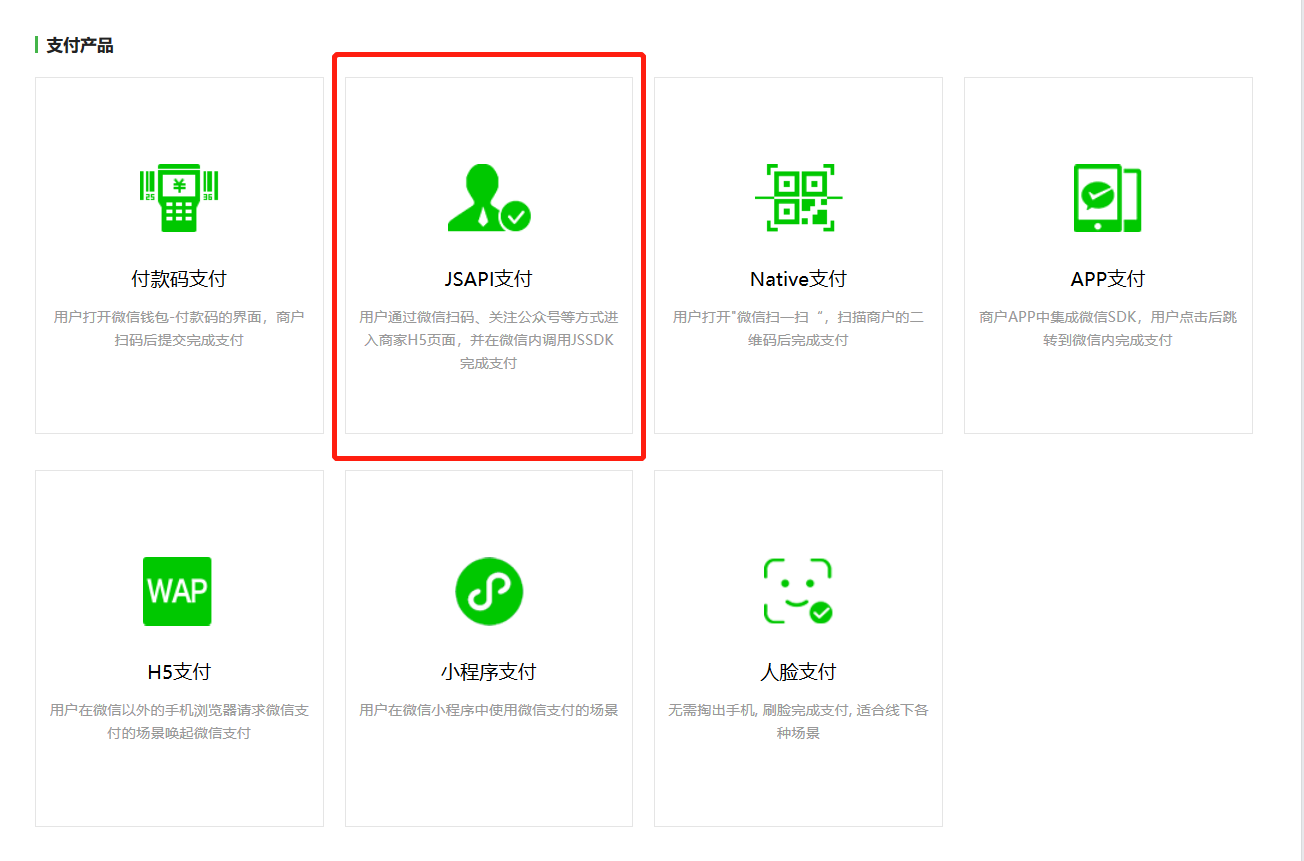
支付类型很多,这里是指在公众号上调用 JSAPI支付

支付产品.png

开通支付

这部分比较繁琐,但都是一些资料认证,在公众号平台的入口进入申请提交就可以了。

商户平台

阅读全文 »

使用场景
  1. 个人PC电脑上调试 微信公众号微信web开发者工具 需要公网域名。
  2. ngrok将个人PC电脑的端口暴露到公网

本来用 nginx反向代理 + 路由器的虚拟服务器转发 可以很方便的解决这个场景,但最近公司路由器抽风,一直不好使。

官方的ngrok很不稳定,偶尔可以用。自建ngrok服务相对稳定,但要自己编译服务端和客户端的二进制文件。

最终效果

公网访问 http://debug.mydomain.com 或者 https://debug.mydomain.com ,将直接访问到部署在我的PC电脑上的Tomcat服务,方便调试程序。

阅读全文 »